2010-04-25

Skype Talk Screen, screen sharing on Linux

Recently, I am looking and testing free (I am a poor college student) and portable (can go with me on my trip) teleconferencing solutions to discuss research topics with talents around the world. Finally, I figured out that Xournal + Skype Talk Screen on Ubuntu Linux could be a good choice.

Ubuntu Linux

Well, everyone loves Linux, and Ubuntu. Everything just works out of box on my Dell Mini 10, except the embedded microphone. Doesn't matter. I can plug an external mic to the jack.

Xournal and Wacom pen tablet

When discussing, I need to show my scratch to my friends as we are talking in front of a chalkboard. I tried tablet PC. Ah, too many drawbacks on other aspects. So I use a pen tablet. I did some test, and after few practices, I can write and draw well.

There is an open source software called Xournal on Linux. Xournal can digitize the trace of your mouse or tablet pen - just like taking notes on traditional paper. You can install it via apt-get or Synaptic. It works better than Windows Journal or One Note.

I used a bluetooth Wacom tablet. You need to do small bug-fixing to make it work. Here is the information https://help.ubuntu.com/community/WacomGraphireBluetooth 


Skype, and Talk Screen

Google Talk, based on XMPP protocol, works fine on Ubuntu Linux, via Empathy or Pidgin, to support video and audio chatting. But, I can't share the screen and therefore cannot show my scratches on the tablet to my friends.

Luckily, Skype released a beta version with screen sharing function, aka Talk screen, in early 2010. So I download it (make sure you download at least Skype 2.1.0.81) and install it. Bingo!

Here are some pictures showing how to so. First call your friend. After he/she picks up, find the blue button with a camera logo in the chat window.
Click it and select "Share Your Screen." You can either share the entire screen or part of it. I prefer part of it as it will use less bandwidth.

Then a frame will pop up to let you select the part of the screen you wanna share. U can move it around. I will place it to the center of my Xournal window. Once you are done, click "Start screen sharing" button at the bottom of the frame.
Finally, I will use the pen of my tablet to write down something.My friend can see me writing as the video being streamed via Talk Screen.

2010-04-11

The best travel deal: Google Maps

I really don't understand why some people in the world wanna censor the Internet and block Google from their people. Googlers have built so many things more wonderful than Steve Jobs' "fruit" company has done.

Alright, go back Google Maps. I will have some travels to New England areas this summer. Well, actually not New England but New Sweden and New Netherlands. America is a genuine immigration country, unlike Canada, of only English and French - according to history classes I took in China and Texas. Haha.

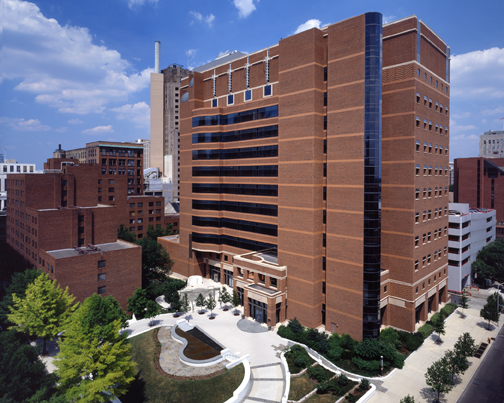
So I wanna take a look first, beginning with Philadelphia. The conference local arrangement people sent me a picture of the building where I am gonna give a presentation. With this picture, I have the reference to check whether I will find the right place. I found the street intersection of this building on their campus map. After setting street view of of the intersection, I saw this:


View Larger Map

Yes, that's the right building I am looking for. But Google only has day view. How about some night view? Google Maps allows users to upload their personal pictures. This night view one is uploaded by Google user.

Google Maps is a great tool to travel. You can see more than a picture but a whole continuous street view. You can move around, and look around in your mouse. For example, while I was "wondering" on the street, I saw this:


View Larger Map

Oh, so Jefferson Medical College did the first liver transplant in 1984.

I know many people spending much time on search for good travel deals. Probably Google Maps is the best travel deal. Engineering is about dreams. I bet there are many people, old people, they had dreams when they were young, like visiting 100 must-go cities. Their physicial condition may not allow it now. But Google Maps can bring those cities right in front of them.

So, why would someone wanna block Google? There are more than 1 billion people there and 70% are elderly. If you block Google, you've killed their half-century-old dreams which can be realized thru model technology.

2010-04-10

Answer Set Programming with clasp and glingo

Answer Set Programming with clasp and glingo 
by Forrest Sheng Bao @ Dept. of Computer Science, Texas Tech University

This document is licensed under Creative Commons BY-NC-SA United States License 3.0 http://creativecommons.org/licenses/by-nc-sa/3.0/us/


$version 0.2 $  $Last update: Nov. 10, 2011 $
The $2.56: If you find an error in the doc or you contribute a useful comment, I will buy you an ice cream - limited in US continental states.

Introduction:Answer Set Programming (ASP) is a ``new'' programming paradigm under the banner of logic programming. Here, by ASP, we also mean a programming language. ASP extends the classical logic programming language Prolog to support a cool feature called non-monotonicity (we will see later). In this tutorial, we will see how to solve an ASP program using clasp and glingo. glingo parses and grounds your ASP program into an intermediate code on which clasp solve to find the answer set(s). We call glingo the grounder and clasp the solver

Step 1: Installing clasp and gringo

Step 2: Configurations
  • I suggest to change file names of binaries into ``easy names,'' such as claps from clasp-1.1.0.
  • On Linux/Mac/Solaris, edit PATH environmental variable. I simply put the line below to the end of my ~/.bashrc
    export PATH=$PATH:the_PATH_TO_My_BINARIES.
    Replace the_PATH_TO_My_BINARIES by actual path, such as /home/forrest/bin 
  • After that, run
    source ~/.bashrc
    or, simply log out your session and then log in.
  • I don't provide support for Windows platform. 
  • Now you should be able to execute commands clasp and gringo from your command line interface. 

Step 3 (optional): Preparing your ASP program
  • Now we write a very simple ASP program. Please save the following lines as program.lp
        fly(X) :- bird(X), not -fly(X).  % X can fly if X is a bird and we do not know that X cannot fly. 
        bird(twittie).                   % twittie is a bird.
        -fly(X) :- penguin(X).           % X cannot fly if X is a penguin.
  • Please note that ASP follows the syntax of Prolog that variables begin with upper case letters and constants begin with lower case letters. 

Step 4: Solving your ASP program
  • You can now solve your ASP program as shown on clasp download webpage http://www.cs.uni-potsdam.de/clasp/?page=downloads
  • This is what happened on my Linux prompt. 
        forrest@myMac:/forrest/$ gringo program.lp | clasp
        clasp version 1.3.6
        Reading from stdin
        Solving...
        Answer: 1
        bird(twittie) fly(twittie) 
        SATISFIABLE

        Models      : 1     
        Time        : 0.000s (Solving: 0.00s 1st Model: 0.00s Unsat: 0.00s)
    I highlighted the answer set part. So Twittie is a bird and thus it can fly. 

  • (optional) Experience the non-monotonic reasoning in ASP: Now add the line below to the end of the program.
          penguin(twittie).   % Twittie is a penguin. 
    Re-solve and check the output. You will see -fly(twittie) in the Answer segment. Now twittie CANNOT fly any more! Very reasonable, because we know it's a penguin now. 
    Here you can see that more knowledge (i.e., knowing Twittie is a penguin.) does not increase the conclusion you can infer - you do not have fly(twittie) any more. This is what I mean by ``non-monotonicity'' earlier. Indeed, this allows you to revise your belief easily whereas this cannot be done easily in classical logic, which is monotonic. 
  • (optional) Macro tricks. There many tricks to play in your ASP program. Some tricks are used in my sample program in the appendix. 
    • hide: For example, your answer set may contain many literals, and you do not wanna see all of them. Then you can use the #hide to hide all of them. The pad sign in not required.
    • show: But you wanna see something. For example, you wanna see all literals built from the predicate occurs, then you can put this line in your program, #show occurs(A,B). The pad sign in not required.
    • A full list of tricks is in Section 4.1.2 of Clingo guide.pdf

Comments and questions are welcomed. I know many people do not use logic programming often. So, if you feel confused, please free feel to let me know and i will add more explanations. 

2010-04-03

Dynamic programming of choose(n,k) in Python

by Forrest Sheng Bao http://fsbao.net

This code is licensed under GPL v3 or later. And you know what you cannot do and what you can do with it.
If you don't know what choose is and its relationship with dynamic programming, check this out http://en.wikipedia.org/wiki/Binomial_coefficient

from numpy import *

def choose(n,k):
   A = zeros((n+1,k+1))
   A[:,0] = 1
   A[1,1] = 1
   for j in xrange(1,k+1): # j = 2:k
      for i in xrange(j,n+1): # i = j:n
         A[i,j] = A[i-1,j-1] + A[i-1,j]
   print A
   return(A[n,k])
 
Example:
 
>>> choose(6,3)
[[  1.   0.   0.   0.]
 [  1.   1.   0.   0.]
 [  1.   2.   1.   0.]
 [  1.   3.   3.   1.]
 [  1.   4.   6.   4.]
 [  1.   5.  10.  10.]
 [  1.   6.  15.  20.]]

Compiling Numpy and Scipy on CentOS Linux 5.4

by Forrest Sheng Bao http://fbao.net

Following instructions to compile Numpy and Scipy work on 64-bit CentOS 5.4 with precompiled ATLAS library. I am not sure whether it works for ATLAS provided by your Linux distribution as I compiled ATLAS from its source code by myself. My CPU type is (actually thousands) Intel Xeon. Some configurations exist is because my system administrator sets Intel C compiler and its libraries as default whereas I insist to use GNU stuffs. You may not need them or you may run into other troubles if you use Intel stuffs all the time.

If you don't know the relationships among Numpy, ATLAS and Scipy, here is a short version. Numpy defines a bunch of data structure for matrix and operations on matrix. Therefore, Numpy wraps ATLAS library (in C and Fortran) into Python. Scipy contains more functions for scientific computing based on Numpy. That's why you need ATLAS first, Numpy then, and Scipy finally.

The default Python version on CentOS 5.4 is 2.4 - which sucks. Red Hat Enterprise Linux 5.5 has been released but CentOS 5.5 is not ready yet.

If you do not know what PYTHONPATH environment variable is, please check this out http://docs.python.org/using/cmdline.html#envvar-PYTHONPATH

Table of Contents:
Part 1: Numpy
Part 2: Scipy
Part 3: Troubleshooting (e.g., undefined reference to `PyErr_Format')

Part 1: Compiling and installing NumPy


1. Download numpy source package from their official website.

2. Extract the numpy source package. My result is a folder called numpy-1.3.0. Enter this folder.

3. Edit site.cfg. If you don't have it, create a blank one. You may copy it from site.cfg.example. Make sure the [DEFAULT] section is configured as follows
[DEFAULT}
libraries = gfortran, gfortranbegin
library_dirs = /usr/local/lib:/usr/lib/gcc/x86_64-redhat-linux/4.1.2

4.
python setup.py build

You should see things like this

creating build/temp.linux-x86_64-2.4/numpy/linalg
compile options: '-DATLAS_INFO="\"3.9.23\"" -Inumpy/core/include -Ibuild/src.linux-x86_64-2.4/numpy/core/include/numpy -Inumpy/core/src -Inumpy/core/include -I/usr/include/python2.4 -c'
gcc: numpy/linalg/lapack_litemodule.c
gcc: numpy/linalg/python_xerbla.c
/usr/bin/gfortran -Wall -Wall -shared build/temp.linux-x86_64-2.4/numpy/linalg/lapack_litemodule.o build/temp.linux-x86_64-2.4/numpy/linalg/python_xerbla.o -L/home/bao/installtest/ATLAS/DONE/lib -L/usr/lib/gcc/x86_64-redhat-linux/4.1.2 -Lbuild/temp.linux-x86_64-2.4 -llapack -lptf77blas -lptcblas -latlas -lgfortran -lgfortranbegin -lgfortran -lgfortranbegin -lgfortran -o build/lib.linux-x86_64-2.4/numpy/linalg/lapack_lite.so
building 'numpy.random.mtrand' extension
compiling C sources
C compiler: gcc -fno-strict-aliasing -DNDEBUG -O2 -g -pipe -Wall -Wp,-D_FORTIFY_SOURCE=2 -fexceptions -fstack-protector --param=ssp-buffer-size=4 -m64 -mtune=generic -D_GNU_SOURCE -fPIC -fPIC

As you can see, the ATLAS library compiled is used in numpy compilation.

5. Test (optional). You can test on any numpy functions
cd build/lib.linux-x86_64-2.4
start your Python interpreter and do like this.
>>> from numpy import *
>>> linalg.svd(array([[1,2],[3,4]]))
(array([[-0.40455358, -0.9145143 ],
       [-0.9145143 ,  0.40455358]]), array([ 5.4649857 ,  0.36596619]), array([[-0.57604844, -0.81741556],
       [ 0.81741556, -0.57604844]]))

6. Install numpy into a target diretory.
Go back to your numpy compilation directory if you've done step 5.

I do not like install anything to the system level directory which requires root privileges. I prefer to install into any directory and set proper environment variable to point - thanks to the great "everything is file" idea of UNIX. The target directory will contain two folders, bin and lib64. The directory you should add into your PYTHONPATH Linux environment variable is TARGET_DIRECTORY/lib64/python2.4/

Please use --prefix to specify your target directory. This is what I did:
python setup.py install --prefix=/home/bao/installtest

Then I set /home/bao/installtest/lib64/python2.4/site-packages as PYTHONPATH and export it in my ~/.bashrc

If you do not specify --prefix, the default installation location is /usr/local and you don't need to set the PYTHONPATH as it is default.

You can check it later by doing so in your Python interpreter:
>>> import sys
>>> sys.path
['', '/home/bao', '/home/bao/installtest/lib64/python2.4/site-packages', '/usr/lib64/python24.zip', '/usr/lib64/python2.4', '/usr/lib64/python2.4/plat-linux2', '/usr/lib64/python2.4/lib-tk', '/usr/lib64/python2.4/lib-dynload', '/usr/lib64/python2.4/site-packages', '/usr/lib64/python2.4/site-packages/Numeric', '/usr/lib64/python2.4/site-packages/gtk-2.0', '/usr/lib/python2.4/site-packages']


Part II: Compiling and installing Scipy


You need numpy and ATLAS to compile Scipy.

1. Download Scipy source package from their official website.

2. Extract the source package. The extracted folder on my computer is scipy-0.7.2. Enter this folder.

3. Create site.cfg file if it doesn't exist and make sure these three lines are in it.

[DEFAULT]
libraries = gfortran, gfortranbegin
library_dirs = /usr/local/lib:/usr/lib/gcc/x86_64-redhat-linux/4.1.2

4.
python setup.py build

5. Test (optional) Actually, there isn't much to test. So I skipped it.

6. Install scipy into a target directory.
This step is very similar to that in Numpy part. I did
python setup.py install --prefix=/home/bao/installtest

If you have already pointed PYTHONPATH in Numpy part, then you are already done. The default installation directory is /usr/local

Part 3: Troubleshooting

If you see error messages like
/home/bao/apps/numpy-1.4.1/numpy/linalg/lapack_litemodule.c:103: undefined reference to `PyType_IsSubtype'
/home/bao/apps/numpy-1.4.1/numpy/linalg/lapack_litemodule.c:114: undefined reference to `PyErr_Format'
/home/bao/apps/numpy-1.4.1/numpy/linalg/lapack_litemodule.c:109: undefined reference to `PyErr_Format'
/home/bao/apps/numpy-1.4.1/numpy/linalg/lapack_litemodule.c:104: undefined reference to `PyErr_Format'
/home/bao/apps/numpy-1.4.1/numpy/linalg/lapack_litemodule.c:109: undefined reference to `PyErr_Format'
/home/bao/apps/numpy-1.4.1/numpy/linalg/lapack_litemodule.c:104: undefined reference to `PyErr_Format'
build/temp.linux-x86_64-2.6/numpy/linalg/lapack_litemodule.o: In function `lapack_lite_dgeev':
/home/bao/apps/numpy-1.4.1/numpy/linalg/lapack_litemodule.c:165: undefined reference to `Py_BuildValue'
build/temp.linux-x86_64-2.6/numpy/linalg/lapack_litemodule.o: In function `initlapack_lite':
/home/bao/apps/numpy-1.4.1/numpy/linalg/lapack_litemodule.c:830: undefined reference to `PyErr_SetString'
/home/bao/apps/numpy-1.4.1/numpy/linalg/lapack_litemodule.c:833: undefined reference to `PyDict_SetItemString'
build/temp.linux-x86_64-2.6/numpy/linalg/python_xerbla.o: In function `xerbla_':
/home/bao/apps/numpy-1.4.1/numpy/linalg/python_xerbla.c:35: undefined reference to `PyExc_ValueError'
/home/bao/apps/numpy-1.4.1/numpy/linalg/python_xerbla.c:35: undefined reference to `PyErr_SetString'
/usr/lib/gcc/x86_64-redhat-linux/4.1.2/libgfortranbegin.a(fmain.o): In function `main':
(.text+0xa): undefined reference to `MAIN__'
collect2: ld returned 1 exit status
error: Command "/usr/bin/gfortran -Wall build/temp.linux-x86_64-2.6/numpy/linalg/lapack_litemodule.o build/temp.linux-x86_64-2.6/numpy/linalg/python_xerbla.o -L/home/bao/apps/ATLAS/ATLAS_LINUX/lib -L/usr/lib/gcc/x86_64-redhat-linux/4.1.2 -Lbuild/temp.linux-x86_64-2.6 -llapack -lptf77blas -lptcblas -latlas -lgfortran -lgfortranbegin -lgfortran -lgfortranbegin -lgfortran -o build/lib.linux-x86_64-2.6/numpy/linalg/lapack_lite.so" failed with exit status 1


Try delete environment variable LDFLAGS and/or CFLAGS. I had this problem once and found the solution here.

Comments are welcomed. Please feel free to email and help me polish this doc. I didn't check my grammar and typo here. Will get back later.

2010-04-01

Compiling ATLAS with LAPACK on CentOS 5.4

by Forrest Sheng Bao http://fbao.net

I did this on a cluster using Intel Xeon CPUs and CentOS 5.4(equivalent to Red Hat Enterprise Linux 5.4). I think this note also works for other Linux distributions, if you wanna compile ATLAS from scratch. You may do so to prepare other software that needs ATLAS, such as numpy.

Step 1: download and prepare files


1.1 Get to ATLAS project homepage to download ATLAS. The version I downloaded was ATLAS 3.9 http://math-atlas.sourceforge.net/

1.2 Get LAPACK from LAPACK project homepage http://www.netlib.org/lapack/ The version I downloaded was 3.2.1. The file name is lapack.tgz.

1.3 Make sure to place LAPACK and ATLAS source package (in either tar.gz or tar.bz2 balls)

1.4 Extract ATLAS source package. A folder named ATLAS should be created.

Step 2: Compile ATLAS into static library (with LAPACK)

2.1
cd ATLAS
2.2 Create a folder. I called it DONE
mkdir DONE
From now on, everything remaining is done under the folder DONE, either under DONE/bin or DONE/lib.
2.3
cd DONE
2.4
../configure -Fa alg -fPIC --with-netlib-lapack-tarfile=../../lapack.tgz
2.3
make
2.4
make check
(optional)
2.5
make time
(optional)

Step 3: Compile ATLAS static library into dynamic library (optional, but you need this step mostly)


3.1:
cd ../lib
(lib under DONE)

3.2: Edit Make.inc. Change F77SYSLIB variable from Intel Fortran library into your gcc Fortran library (Optional. On my computer, Intel and GNU environmental variables are messed up coz my system administrator installed Intel C Compiler with Intel C Library whereas I always go GNU.)

On my computer, I change the line
F77SYSLIB = -L/opt/intel/Compiler/11.1/056/lib/intel64 -lgfortran
into
F77SYSLIB = -L/usr/lib/gcc/x86_64-redhat-linux/4.1.2 -lgfortran

3.3 Edit Make.inc. Change -lgfortran in F77SYSLIB variable into -lgfortranbegin
On my computer, after step 3.2, I change the line
F77SYSLIB = -L/usr/lib/gcc/x86_64-redhat-linux/4.1.2 -lgfortran
into
F77SYSLIB = -L/usr/lib/gcc/x86_64-redhat-linux/4.1.2 -lgfortranbegin

3.4 Edit Makefile. Change the DESTDIR library if your installation destination is not /usr/local/atlas. This variable is not set accordingly if you use --prefix in configuring.

On my computer, I manually set it to the directory of compiled ATLAS library. Thus, change line
DESTDIR=/usr/local/atlas
into
DESTDIR=/home/bao/installtest/ATLAS/DONE

3.5 Make into dynamic library.
make shared

Step 4: Set environmental variables


4.1 Set a variable ATLAS, pointing to the lib folder under DONE. On my computer, I add this line into my ~/.bashrc
export ATLAS=/home/bao/installtest/ATLAS/DONE/lib

4.2 Add $ATLAS into LD_LIBRARY_PATH
On my computer, I add this line into my ~/.bashrc
export LD_LIBRARY_PATH=$LD_LIBRARY_PATH:$ATLAS

4.3 Activate new environmental variables
You can either source ~/.bashrc or simply log out and re-login in.

Step 5: Test ATLAS
ATLAS source package comes with several examples. You can run them to test.
cd ../bin
make xdlutst_dyn
./xdlutst_dyn

If you run into the error like
./xdlutst_dyn: error while loading shared libraries: /usr/local/atlas/lib/libf77blas.so: cannot open shared object file: No such file or directory
, go back to step 3.5. Delete libf77blas.so under DONE/lib and rerun make shared. Then come back to step 5.