2009-04-09

How does MATLAB benchmark work?

by Forrest Sheng Bao http://fsbao.net

I got a new iMac, the latest 24-inch one with 4G DDR3 memory, 2.66 G Intel Core 2 Duo CPU and NVIDIA GeForce 9400M graphic card.

So, I plan to compare the performance of the same box on Mac OS 10.5 and Ubuntu Linux 9.04 Beta (2.6.28-11 kernel) respectively. The first stuff I tried is MATLAB R2009a.

But I got quite confused regarding how MATLAB benchmark works. I typed bench on MATLAB shell 3 times sequentially, and got following results:
0.1471    0.3886    0.1981    0.3178    0.1815    0.0053
0.0918 0.1435 0.1597 0.2413 0.1659 0.0026
0.0805 0.1395 0.1601 0.2381 0.1633 0.0027
I noticed the huge different among them. So I did a bench(10), which will run the benchmark 10 times. I got this:
0.0939    0.1413    0.1603    0.2455    0.1436    0.0044
0.1106 0.1409 0.1594 0.2379 0.1715 0.0030
0.1145 0.1559 0.1601 0.3205 0.1415 0.0026
0.0584 0.1426 0.1601 0.2354 0.1456 0.0044
0.0799 0.1446 0.1607 0.2784 0.1354 0.0044
0.0900 0.1385 0.1597 0.2375 0.1468 0.0044
0.0983 0.1597 0.1606 0.2851 0.1533 0.0027
0.0770 0.1445 0.1619 0.2373 0.1629 0.0044
0.0810 0.1466 0.1651 0.2493 0.1217 0.0027
0.0892 0.1402 0.1605 0.2367 0.1697 0.0028
This drove me crazy. Let MATLAB do me a favor.
>> min(result(:,1))

ans =

0.0584

>> max(result(:,1))

ans =

0.1145
Still not clear?
>> (max(result(:,1))-min(result(:,1)))/max(result(:,1))

ans =

0.4902
Or, you want a more professional answer?
>> std(result(:,1))/mean(result(:,1))

ans =

0.1852
See the problem? The result equals to this story: Sometimes I need 1 day to build Rome while sometimes I need 2 days to build Rome.

The same machine, the same Linux kernel, the same version of MATLAB composed different stories for us.

The six columns of benchmarking result are of these six tasks:
    LU       LAPACK.                  Floating point, regular memory access.
FFT Fast Fourier Transform. Floating point, irregular memory access.
ODE Ordinary diff. eqn. Data structures and M-files.
Sparse Solve sparse system. Mixed integer and floating point.
2-D plot(fft(eye)). 2-D line drawing graphics.
3-D MathWorks logo. 3-D animated OpenGL graphics.
Please ignore the last two columns of my result since I enabled -nojvm option when starting MATLAB. Thus, I didn't actually plot.
Dual-boot Linux and Mac OS X on Intel-based iMac

by Forrest Sheng Bao http://fsbao.net

I just got a new iMac. Yes, the latest Apple iMac, the 24-inch one, with 4G DDR3 memory, 2.66GHz Intel Core 2 Duo CPU (almost 15, 000 integer MIPS (Dhrystone) and 5,000 floating point MIPS (Whetstone)), and nVidia GeForce 9400M graphic processor.

Ok, so, how to install Ubuntu on an Intel-based iMac? There is a good instruction for you at Ubuntu Help. https://help.ubuntu.com/community/MactelSupportTeam/AppleIntelInstallation

The general idea is:

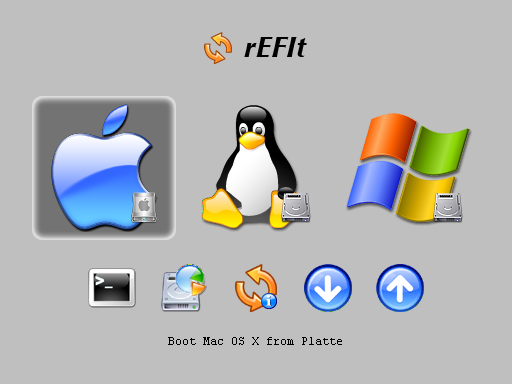
1. Google, download and install rEFlt. Make sure that you can see its interface when you boot up your Mac. Most likely, you need to SHUTDOWN the Mac and then start it. RESTART does not work. If you update your Mac OS X, Mac OS X may rewrite the bootload. So you need to reinstall rEFlt in Mac OS X. It should be look like the one on rEFlt official website, but without Linux and Windows option, just a Mac OS X.
http://refit.sourceforge.net/screen.html


2. Prepare the partition for Linux. You can use BootCamp Assistant or Disk Utility to do so. I splitted a big partition for Linux and used Ubuntu installation program later to do further partitioning, i.e. one for / and one for swap.


3. Insert Ubuntu installation CD into Mac and reboot your Mac from it. Install it. Do remember to install bootloader on the Linux root partition (NOT MBR or other places) by clicking Advanced button like this:

This is how my bootloader selection menu looks like.


Update 2011-12-23: I fully swiped out Mac OS X on my iMac. Now it has only Ubuntu Linux. This is how the bootloader selection look like now.


4. Reboot when done with the install, and in the rEFIt menu, choose the partition tool. It will attempt to sync the partition tables on your disk. Then SHUTDOWN the computer (not reboot), and start it up. You should be able to boot to Ubuntu now.

Here is a video regarding how Linux booted from my iMac.

2009-04-06

Agilent ADS 2009 on Ubuntu Linux 9.04

by Forrest Sheng Bao http://fsbao.net

Agilent ADS is a great tool for circuit simulation on Linux.

1. Install ksh

sudo apt-get install ksh

2. Download and extract ADS2009 installation files. Enter the directory that stores all installation files. Run

./SETUP.SH

and follow on-screen instructions.

Be sure to set the proper path for ADS2009. ADS2009 could be very big, 5.5 GB. So it is better to install it on a separate partition other than your root partition, like below.

3. Set necessary environmental variables. The HPEESOF_DIR environmental variable should be set to be equal to the path to the installation directory and add HPEESOF_DIR/bin into $PATH. Activate new environmental variables (You can logout and login again or source profile files.)

4. (Optional for 64-bit Linux) Install 32-bit libmotif. First, download 32-bit libmotif.

For Jaunty Jackalope, you can download it from http://packages.ubuntu.com/jaunty/libmotif3

Then, extract the deb package. One file you can find from extracted libmotif3 deb package is data.tar.gz. The data.tar.gz in libmotif3 deb package contains all 32-bit libmotif3 libraries required by ADS2009. Extract it and you shall find a directory called usr in it. Enter that directory and enter the lib subdirectory. Copy every *.so.* file into /usr/lib32 (You may need root privilege to do so).

5. Add license server at pop-up window when your first type ads on the shell for the first time. This step depends on your license type. For me, I connect to a license server. For you, maybe it is a license file.

Now you are ready to run ADS2009.